Using AI Actions
Use AI Actions to perform complicated edits such as selecting subjects, backgrounds, skies and more with the press of a button.
To use AI Actions:
- Select an image and bring it in to the Editor.
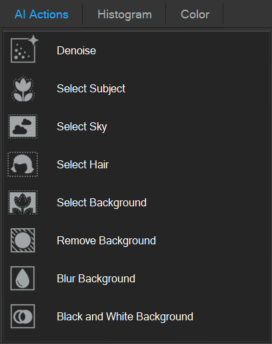
- In Editor, choose one of the 8 AI Actions from the AI Actions pane in the top right.
If the AI Actions pane is not visible, it can be accessed by either press F11, or selecting Window at the top and clicking on AI Actions.
Selections made with AI can be further refined by clicking Select | Refine.
AI Action Tools:
There are 8 AI Actions that can be performed:
| Denoise | Reduces noise in the image. |
| Select Subject | Selects the subject only. |
| Select Sky | Selects the sky. |
| Select Hair | Selects the subject's hair only. |
| Select Background | Selects the background of the image. |
| Remove Background | Click to isolate the subject with a masked adjustment layer and remove the background. The subject is not selected. |
| Blur Background | Click to create a masked adjustment layer to blur the background. The subject is not selected. |
| Black and White Background | Click to create a masked adjustment layer to change a colored background to a black and white background. The subject is not selected. |
In addition to the AI Actions pane, Select Subject, Select Sky, Select Hair, and Select Background can be accessed via the Select menu.